Getting Started
This guide will help you get up and running with RuneScrap.
Step 1: Create an Account
To use RuneScrap, you first need to create an account:- Click the Login button in the top right corner
- Select Create Account
- Fill in your details and submit
- Check your email for a verification link
Step 2: Install the Dink Plugin
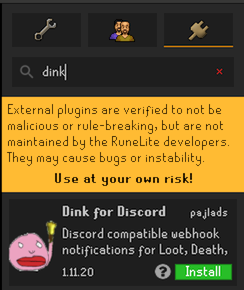
Before you can start tracking events, you need to install the Dink plugin in RuneLite.
- Open RuneLite
- Navigate to the Plugin Hub
- Search for “Dink”
- Click Install
Step 3: Connect Your Webhook URL
Now you need to connect RuneScrap to the Dink plugin using your unique Webhook URL.
Find Your Webhook URL
- Navigate to your Account Settings page
- Locate your Webhook URL
- Click the Copy button to copy it to your clipboard

Security Note
Your Webhook URL is unique to your account and should never be shared. If it's compromised, regenerate it immediately by clicking the **Regenerate** button, then update it in your Dink plugin settings.
Add Webhook URL to Dink
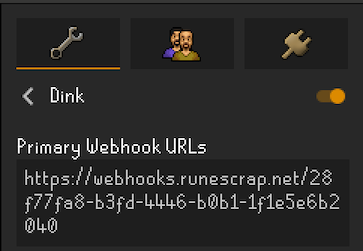
- In RuneLite, open the Dink plugin settings
- Paste your Webhook URL into the appropriate field
- Save your settings
Step 4: Add Your OSRS Accounts
Now you’re ready to add your OSRS accounts to RuneScrap for tracking.
Get Your Dink Hash
First, you need to get your account’s unique Dink hash:
- Log into the OSRS account you want to track
- Type ::dinkhash in the in-game chat
- The hash will be automatically copied to your clipboard
Important
Each OSRS account has a unique Dink hash. This is how we identify which account sent each event. Make sure you enter the correct hash for each account you add.
Add the Account
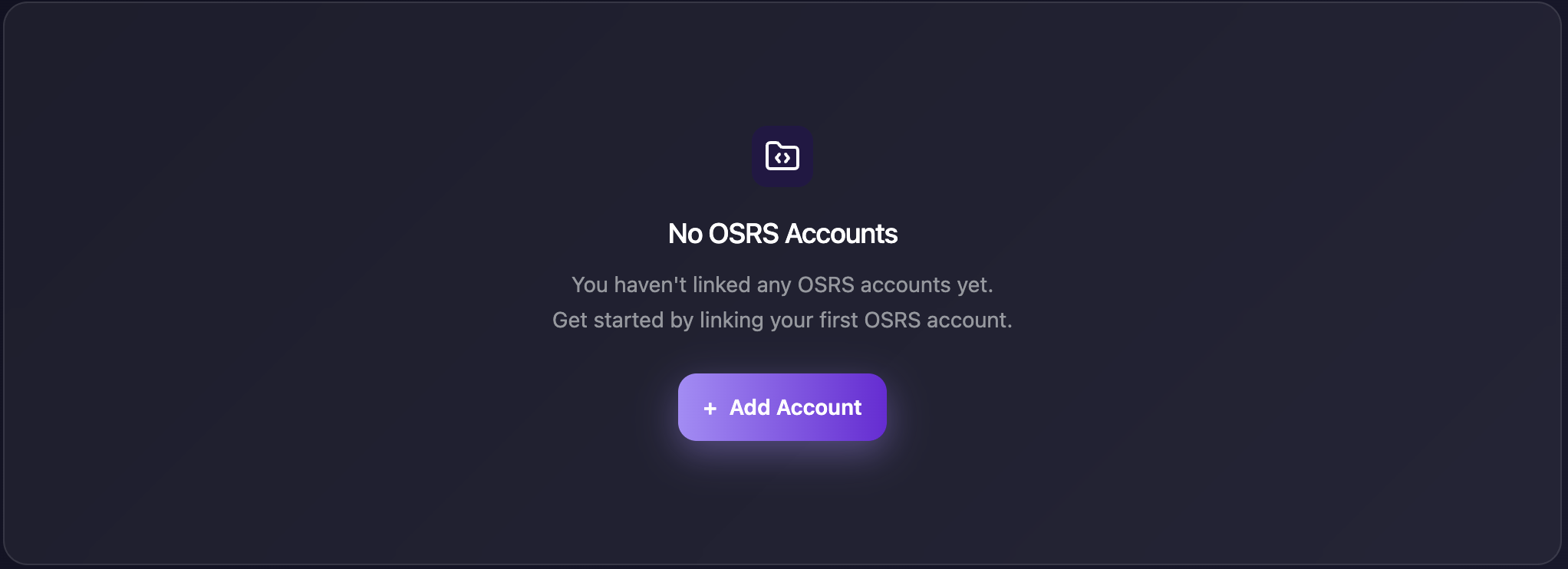
- Navigate to Settings → OSRS Accounts tab
- Click the Add Account button
- Enter your account name and paste the Dink hash
- Click Save
Advanced Configuration
Dink Plugin Settings
The Dink plugin offers extensive configuration options for each event type. These settings determine which events are sent to RuneScrap based on your preferences.
Using Multiple Webhooks
If you’re already using Dink with Discord, you can use both simultaneously:
- Add the RuneScrap Webhook URL on a new line in your Dink settings
- Keep your existing Discord webhook URL
- Dink will forward events to both destinations
Fine-Tuning Event Forwarding
You might want different events tracked in RuneScrap versus sent to Discord. RuneScrap offers separate Discord alert settings for each OSRS account to give you this flexibility.
Example Workflow:
- In Dink: Enable Death events to track all deaths in RuneScrap
- In RuneScrap: Disable Death alerts for Discord notifications
- Result: All deaths are tracked in RuneScrap, but your Discord stays clean
This approach lets you comprehensively track events without overwhelming your Discord channels.
Discord Alert Configuration
Each OSRS account can have customized Discord alert settings:
- Go to Settings → OSRS Accounts
- Click the Alerts button for your account
- Configure which events trigger Discord notifications
- Save your preferences
Start Playing
That’s it! You’re all set up. As you play OSRS:
- Events will automatically be tracked in RuneScrap
- Your goals will update in real-time
- Discord notifications will be sent based on your settings
What's Next?
Explore the Features section to learn about event tracking, goal tracking, Discord alerts,and more features of RuneScrap.